This guide connects Clínica del Sol's WhatsApp and phone through Twilio. For WhatsApp directly with Meta, see the guide Connect Meta. How a call works once connected —the voice, the greeting, how it ends— is in the Voice chapter.
The Twilio-side steps follow Twilio's console as it was when this guide was written. What the guide says about the platform side is verified against the code.
Before you start
- One Twilio account per tenant, shared by WhatsApp and voice.
- One WhatsApp sender per tenant. Every reply goes out from that sender.
- The URL decides the agent, not a setting on the screen. Each Twilio number or sender points to an agent's URL; changing agent means changing the URL in Twilio.
- The tenant needs WhatsApp or voice enabled in its features (chapter 8).
The configuration is in Integrations → Twilio, with two tabs: WhatsApp and Voice.
1. Credentials
In the Twilio console, in the account info, copy the Account SID (it starts with AC) and the Auth Token.
In the platform, Twilio Credentials → Configure, enter both and save. On save, the platform tests the credentials against Twilio: if Twilio rejects them, they are not saved. Afterwards Validate appears to test them again.
Use the main Auth Token, not an API key (SK…): the platform needs it to verify the signature of every message and call Twilio sends, and it does not accept API keys.
2. WhatsApp
The sender
Configure WhatsApp asks for the WhatsApp Sender: the WhatsApp-enabled number in Twilio, in international format, for example +5491155550000.
- For testing, you can use Twilio's WhatsApp Sandbox. The sender is the sandbox number, and each person who wants to test must first send it the
join <code>message Twilio shows. - For production, the sender is the approved number in Messaging → Senders → WhatsApp senders.
- Do not use a Messaging Service SID (
MG…), even though the field suggests it: the platform always sends from a number, and with a SID sending fails.
The webhook URL
The URL to paste in Twilio is:
{API URL}/webhook/whatsapp/{tenant}/{agent}
On the Synaptic Links installation, for the clinic's scheduling agent:
https://ai.synapticlinks.com.ar/api/webhook/whatsapp/clinica-del-sol/turnos-clinica
The URL the screen shows is incomplete: it ends at the tenant and lacks the agent key. Copy it and append /{agent-key}. The key is on the agent's detail page.
In Twilio, in the sender's (or the Sandbox's) configuration, paste it in "When a message comes in", with method POST. Leave the status callback empty: the platform does not use it.
Test
With the sender saved, Edit configuration shows Test Message: a number and a text, to check that the platform can send. To check that it receives, write to the number from a phone; the conversation shows up in Monitoring → Sessions.
How it behaves
- It replies through Twilio's API, not in the webhook response: the platform answers Twilio right away and processes the message afterwards, so it never exceeds Twilio's timeout.
- Long answers are split into messages of up to 1,600 characters. If Twilio returns a temporary error, it is retried twice.
- Images: up to 3 per message, if the agent accepts images as attachments (chapter 11). If not, the agent receives a text saying an image arrived.
- Audio: transcribed, and the agent receives the text.
- Documents: not downloaded; the agent receives a notice that a file arrived.
- Buttons and lists: the workflow's questions with options are shown as WhatsApp buttons or a list.
- One conversation per person and sender, renewed after 24 hours without messages (chapter 6).
Progressive response
In the WhatsApp configuration, the Progressive Response section has Enable progressive mode: instead of waiting for the full answer, the platform sends parts as the agent generates them, with an interval and a maximum number of messages.
The options on the WhatsApp card in each agent's Channels tab —acknowledgement messages, notices while it uses tools, a delay notice, stripping formatting— only apply with progressive mode on. Without it, the answer arrives in a single send and those options have no effect.
3. Voice
Receiving calls
In Twilio, in Phone Numbers, open the number and, in its voice configuration, set "A call comes in" to a webhook with method POST:
{API URL}/webhook/voice/{tenant}/{agent}
The screen does not show this URL: build it like the WhatsApp one. Everything else —voice, language, greeting, inactivity timeout— is configured on the Voice card in the agent's Channels tab (chapter 14).
Outbound calls
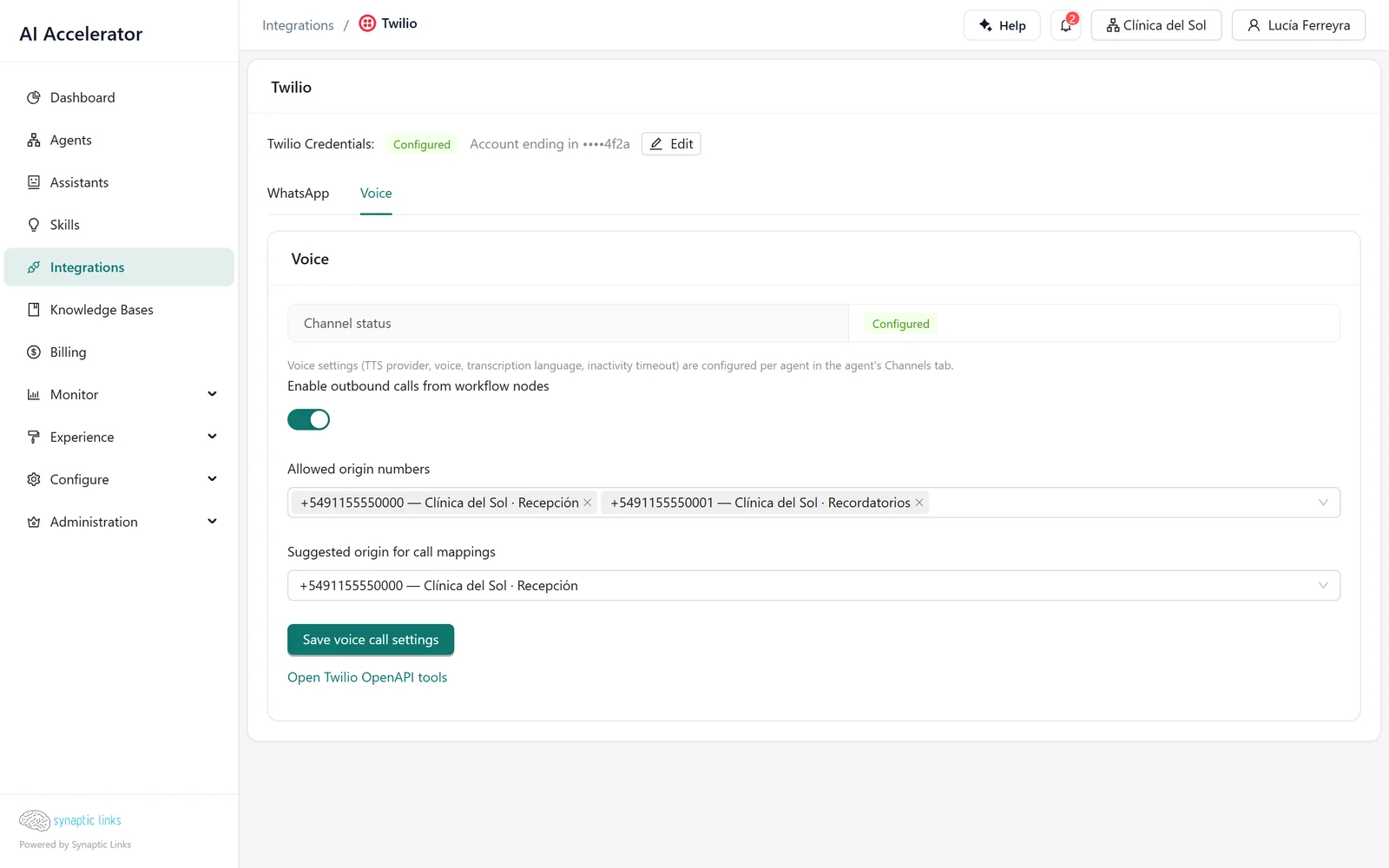
On Twilio's Voice tab:
- Turn on Enable outbound calls from workflow nodes.
- In Allowed origin numbers, pick the numbers in your account the agent may call from. The list comes from your Twilio account.
- Pick the Suggested origin for call mappings, which must be one of the allowed ones.
- Save. The platform generates the tools to start, fetch and update calls, which workflows use like any tool (chapter 5).
When messages or calls don't arrive
| Symptom | Likely cause | What to do |
|---|---|---|
| Twilio shows a 404 on the webhook | The URL lacks the agent key | Append /{agent-key} |
| Twilio shows a 403 | The signature doesn't match: the URL in Twilio is not exactly the public one, or the Auth Token changed | Paste the exact URL, with https and the same host, no trailing slash, and check the saved Auth Token is the current one |
| Twilio shows no error, but the agent doesn't answer | The agent key does not exist in the tenant | Check the key on the agent's detail page |
| The message arrives but the reply fails | The sender is a Messaging Service SID, or mistyped | Use the number in +… format |
| With the Sandbox, a person's message doesn't arrive | That person hasn't joined the Sandbox | Have them send join <code> first |
| A reply many hours later is not delivered | More than 24 hours since the person's last message | Outside that window, WhatsApp only accepts approved templates |
| Calls are not answered | The voice URL is wrong, or the tenant has a privacy policy | Check the URL; with a privacy policy, Twilio voice is not available (chapter 9) |
| Many calls in a row fail | The voice webhook allows 10 requests per minute | Spread the calls out or ask for an adjustment |
Where it stops
- The WhatsApp screen shows an incomplete URL and the voice screen shows none: you have to build them by hand.
- One WhatsApp sender per tenant. Several numbers can point to different agents, but every reply goes out from the configured sender.
- There is no protection against repeated messages: if Twilio redelivers a message, the agent may answer twice.
- Delivery statuses are not recorded and status callbacks are not used.
- The 24-hour window is not checked: a reply outside the window fails at Twilio and shows up as an error in the run.
- The agent's WhatsApp options only work with progressive mode.
- API keys and Messaging Services are not accepted, only Account SID, Auth Token and a number.
To check
- The credentials are validated and the Auth Token is the current one.
- The sender is a number in
+…format. - Every URL in Twilio ends in the right agent's key and uses POST.
- A test message goes out, and a message from a phone shows up in Sessions.
- If the agent's WhatsApp options are used, progressive mode is on.
- The outbound origin numbers are only the ones the agent should use.