This guide connects Clínica del Sol's WhatsApp and Instagram directly with Meta, with no intermediary. If the clinic uses Twilio for WhatsApp, the setup is different: the number is connected in the Twilio integration and the agent is decided by the webhook URL (Connect Twilio).
The Meta-side steps follow Meta's console as it was when this guide was written; Meta renames menus often. What the guide says about the platform side is verified against the code.
Before you start
- One number and one account per tenant. Each tenant has a single direct WhatsApp configuration and a single Instagram configuration, and each answers with one agent. If the clinic needs two numbers, it needs two tenants.
- The tenant needs WhatsApp or Instagram enabled in its features (chapter 8).
- An admin of the clinic's Business Manager, or someone with permissions on its WhatsApp Business account and its Page.
- One Meta app can serve both channels. If WhatsApp and Instagram are in the same app, use the same app secret on both tabs.
The configuration is in Integrations → Meta Business, with three tabs: Meta (the state of both channels), WhatsApp and Instagram.
1. What to prepare at Meta
- In Meta for Developers, create a business-type app and add the WhatsApp product.
- In WhatsApp → API Setup, note the WhatsApp Business Account ID and the Phone Number ID. It is the number's identifier, not the number itself.
- In the business settings, create a system user with the admin role, assign it the app and the WhatsApp Business account, and generate a token with the
whatsapp_business_messagingandwhatsapp_business_managementpermissions. Use a token that does not expire: a temporary token from the console stops working within hours. - In the app's basic settings, note the App ID and the App Secret.
2. What goes in each field
On the WhatsApp tab:
| Field | What goes in |
|---|---|
| Meta App ID | The App ID (step 4) |
| WhatsApp Business Account ID | Step 2 |
| Phone Number ID | Step 2 |
| Agent | The agent that answers the number, for example Turnos y consultas |
| System User access token | The token from step 3 |
| Meta App Secret | The secret from step 4 |
Save. On the first save, the platform:
- Encrypts the token and the secret. They are never shown again: if you leave those fields empty on a later save, the previous values are kept.
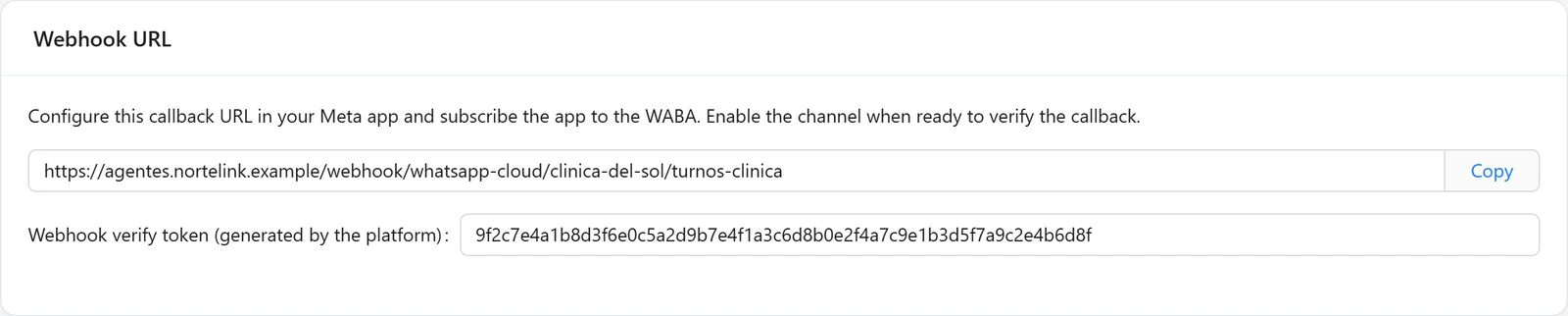
- Generates the webhook verify token and shows it on screen, together with the chosen agent's webhook URL.
3. Enable and verify the webhook
Order matters: enable the channel first, then verify at Meta. While the channel is disabled, the platform does not answer the verification and Meta shows an error.
- Turn on Enable direct WhatsApp channel and save. The switch is only available once the token and the secret are loaded.
- At Meta, in WhatsApp → Configuration, paste the webhook URL and the verify token the platform shows, and verify.
- In the webhook fields, subscribe to
messages. If you don't, verification still works but no message arrives.
The URL has this shape: {API URL}/webhook/whatsapp-cloud/{tenant}/{agent}. Because it carries the agent key, if you change the agent, the URL changes and must be updated at Meta.
4. Test
Send a text message to the number from a phone. The conversation appears in Monitoring → Sessions, filtering by WhatsApp. If it doesn't, see the table at the end.
How it behaves
- Anyone can write. There is no list of allowed numbers.
- One conversation per person and number, renewed after 24 hours without messages (chapter 6).
- Text and buttons only. Text messages, button replies and list replies. Audio, images, documents, locations and reactions are dropped without a reply.
- Long answers are split into messages of up to 4,000 characters.
- Questions with options. When the workflow asks for a choice (an approval step, chapter 3), up to 3 options are shown as buttons and 4 to 10 as a list. If the person types instead of choosing, the question is repeated.
- The 24-hour window. Meta only allows writing freely to someone within 24 hours of their last message. The agent's answers are always inside that window; a message the workflow wants to send later is rejected.
- Meta's retries. The platform processes each message and only then confirms receipt to Meta. If something fails, Meta redelivers it, and the platform resumes without repeating what it already sent.
1. What to prepare at Meta
- The clinic's Instagram account must be professional and linked to a Facebook Page.
- In the Meta app, add the messaging products for Instagram.
- Generate a Page access token with the
instagram_basic,instagram_manage_messagesandpages_messagingpermissions. To reply to comments, Meta also requires the comment-management permission. - Note the Instagram professional account ID and the app secret.
2. What goes in each field
On the Instagram tab:
| Field | What goes in |
|---|---|
| Linked Facebook Page ID | The Instagram professional account ID (see the warning) |
| Agent | The agent that answers |
| Page access token | The token from step 3 |
| Meta App Secret | The same secret as in WhatsApp, if it is the same app |
Careful with the first field. The platform compares that value with the identifier Meta sends in each Instagram event, and Meta sends the Instagram account's, not the Page's. If you enter the Page ID, webhook verification works, but every message is rejected. If nothing shows up after the test, check this field first.
3. Enable, verify and test
- Turn on Enable Instagram channel and save. The screen shows the URL and verify token, as with WhatsApp.
- In Meta's Instagram webhook settings, paste the URL and the token, verify, and subscribe to
messagesand, if you want it to answer comments, tocomments. - Send a direct message to the account from another Instagram account.
How it behaves
- Direct messages and comments. It answers direct messages and replies to comments on posts. Each post is a separate conversation for each person.
- Language. It answers in the tenant's default language.
- Text only. Messages without text —images, audio, story replies— are dropped.
- Formatting. Formatting is removed; direct messages are split into 1,000-character parts and comment replies are cut at 2,200.
When messages don't arrive
| Symptom | Likely cause | What to do |
|---|---|---|
| Meta cannot verify the URL | The channel is disabled, or the URL belongs to another agent | Enable the channel and copy the URL again from the screen |
| Meta says the token doesn't match | The verify token was copied wrong | Copy it again from the screen |
| The URL verifies but nothing arrives (WhatsApp) | No subscription to messages, or the Phone Number ID doesn't match | Check the webhook fields at Meta and the Phone Number ID |
| The URL verifies but nothing arrives (Instagram) | The first field has the Page ID | Enter the Instagram professional account ID |
| Messages arrive but the agent doesn't answer | Expired token or missing permissions, or the number is not enabled at Meta | Generate a permanent system-user token with the listed permissions |
| The person sent audio or a photo and got no answer | Only text and buttons are processed | Expected behaviour |
| It stopped working after changing the agent | The URL carries the agent key | Update the URL at Meta |
Where it stops
- One WhatsApp number and one Instagram account per tenant, each with one agent.
- There is no button to test the connection: you test by sending a message.
- Audio, images and documents are not processed on either channel.
- No WhatsApp templates from the admin. The platform can send approved templates, but today there is no way to configure that in the editor; without templates you cannot write to someone outside the 24-hour window.
- Delivery and read receipts are not reported, and "typing" is not shown.
- The App ID is stored but not used.
- On Instagram, protection against repeated messages is per server: with several instances, a Meta redelivery could be answered twice.
To check
- The WhatsApp token belongs to a system user and does not expire.
- The WhatsApp webhook is subscribed to
messages; the Instagram one tomessagesand, where needed,comments. - The URL configured at Meta is the one the screen shows today, with the current agent.
- On Instagram, the first field has the Instagram professional account ID.
- A test message shows up in Sessions.