Before creating the first agent it pays to have the map clear: where each thing lives, who owns it and what happens to it when there is more than one client on the same installation. Almost every operational surprise comes from here. An agent that stops answering because the client created its own model connection. A change that went live without passing through a review. A user who sees a client they should not see.
This chapter builds that map using the case of Nortelink and Clínica del Sol.
The tenant is the unit of everything
A tenant (shown in the admin under Tenants) is an isolated space: it has its own agents, its model connections, its knowledge bases, its integrations, its channels, its users and its usage. None of that crosses over to another tenant unless the platform explicitly says so, and the cases where it does are few and are all in this chapter.
Tenants form a tree. Each one stores its place in the tree as a path of identifiers: a root tenant has a path with its own id, and a child appends its own to the end of the parent's path. In our example:
| Tenant | Parent | Path (abbreviated) |
|---|---|---|
| Nortelink | — | /nortelink/ |
| Clínica del Sol | Nortelink | /nortelink/clinica-del-sol/ |
| Ferretería Ruta 3 | Nortelink | /nortelink/ferreteria-ruta-3/ |
That path is what the platform consults when it needs to know whether someone has permission over a tenant "below": it does not walk the tree, it compares prefixes.
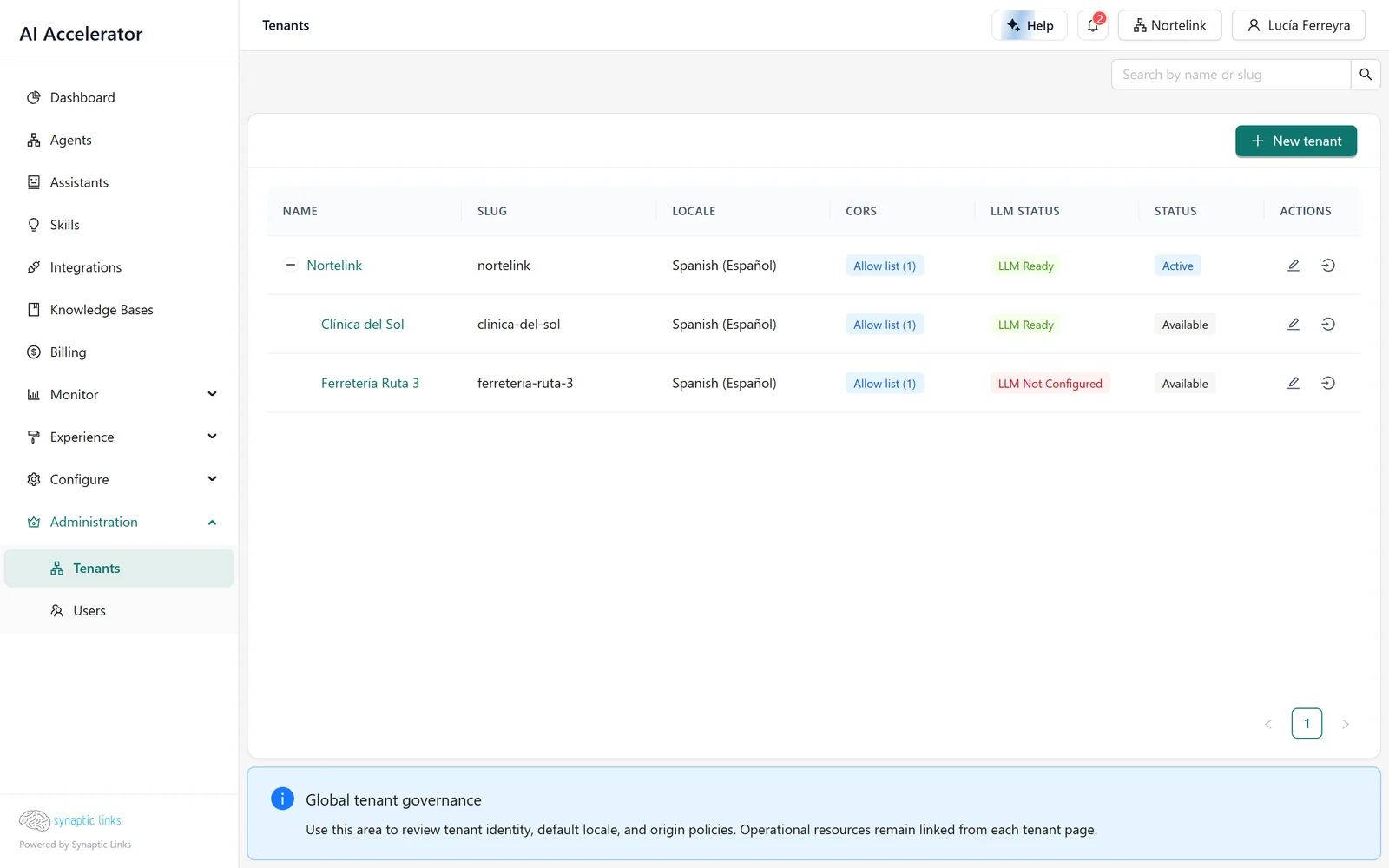
To create a child tenant, the parent must have the child tenants feature enabled and must not have reached its child limit. A user who is not a super admin can only create tenants underneath one they already administer. Every new tenant starts with unlimited billing, which in a child tenant means the parent pays for the usage. We return to this in chapter 8.
What belongs to a tenant and what is shared
The general rule is simple: each resource belongs to a single tenant. There are three exceptions, and it is worth knowing them by heart.
Model connections, by inheritance. A child tenant can use its parent's model connections if it has the inherit connections from parent option turned on. Only a super admin can change that option. Inheritance is all or nothing: as long as the child has no active connections of its own, it uses those of the nearest ancestor that has some. As soon as it creates a single connection of its own, it stops seeing all the inherited ones. Chapter 2 explains what that means for agents that were already working.
Model defaults. Along with the connections, the default models for each reasoning level are inherited, if the child has not defined its own.
Shared knowledge bases, explicitly. A knowledge base belongs to one tenant. For another tenant to use it, it has to be added to that tenant's list of default bases, which are automatically added to its agents' searches. There is no implicit inheritance of knowledge.
Everything else (agents, integrations, tools, channels, sessions) belongs strictly to the tenant where it was created. Tools can be shared with child tenants, but operation by operation and with explicit permission; chapter 5 covers this.
Agents, assistants and skills are the same thing in different forms
In the menu you will see Agents, Assistants and Skills as separate sections. Underneath they are a single type of object, the agent, which has versions. What changes is the mode of each version:
- Workflow. You build it as a graph of nodes in the visual editor. Full control over every step.
- Assistant. You configure it with a form: instructions, model, knowledge, tools. On save, the platform compiles it into an equivalent graph and stores both: the original form and the graph that actually runs.
- Skill. A reusable procedure (from the curated catalogue or uploaded by you) that is assigned to an assistant or to a node in a workflow. The agent that uses it keeps its own permissions and limits.
Each mode depends on a tenant feature. If a client does not have the workflow editor enabled, it does not see the Agents section, but it can have assistants.
The practical consequence: when chapter 3 explains how a workflow runs, that also applies to assistants, because an assistant ends up being a workflow you did not draw yourself.
Versions: when a change goes live
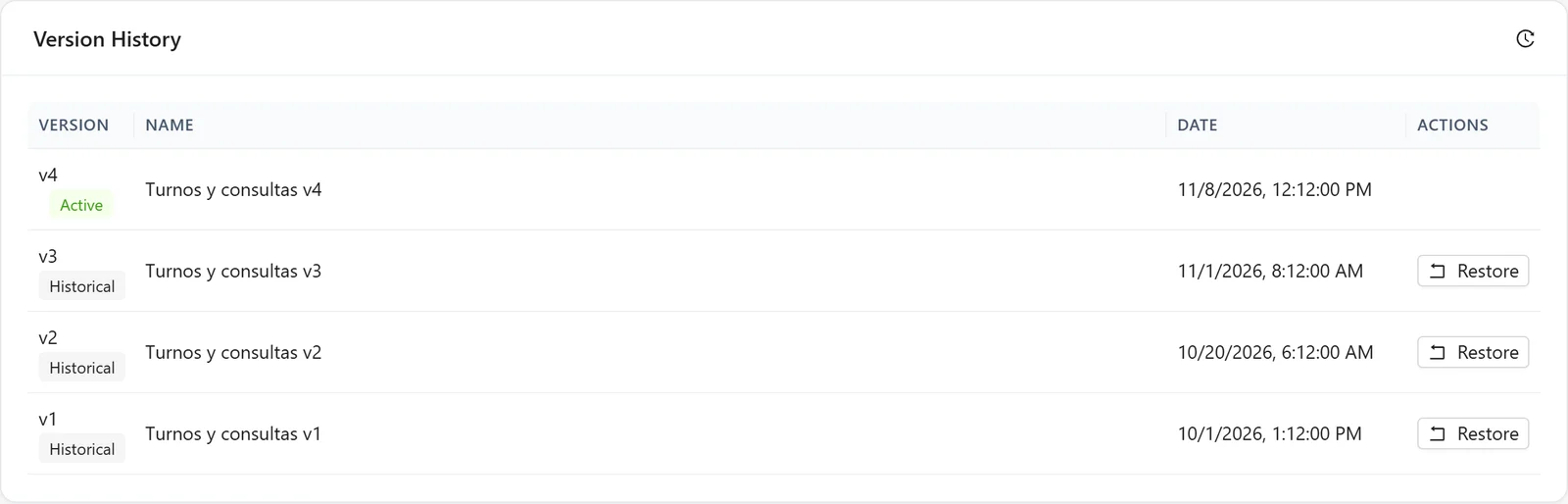
Every agent has a list of versions. A version is in one of three states, and the state comes from two facts: whether it is active and whether it was ever active.
| State | Active | Was activated | What it means |
|---|---|---|---|
| Pending | no | never | Saved changes that do not answer anyone yet |
| Live | yes | yes | The one answering users |
| Historical | no | yes | It was live and has been replaced |
What happens when you save a change to a live agent is decided by the tenant's version activation, chosen in its configuration:
Automatic (the default). Saving publishes. From the forms (an assistant's configuration, the channels, the agent's details) the platform marks the live version as historical, creates the next one and activates it at the same moment: if the clinic is on version 3 and you save a change to the instructions, version 4 starts answering immediately on every channel, and going back means restoring version 3 from the history. From the workflow editor, instead, saving writes over the live version and leaves no previous one to go back to.
Manual. Saving does not publish. The first change copies the live version into a pending version, and every later save (forms or workflow editor) goes to that same pending version. Users keep talking to the live version meanwhile. The agent shows a pending-changes notice with three actions: view the differences with what is live, activate or discard.
For the clinic, Nortelink chose manual activation: instruction changes are tested and reviewed before a patient sees them. For a test tenant, automatic saves a step.
If someone else changed the same workflow while you were editing it, the save is rejected with a conflict notice instead of overwriting their change.
Who can do what
Each user has, in each tenant, one of three roles: Viewer, Admin or Owner. There is also the Super Admin, who administers the whole installation.
| Can… | Viewer | Admin | Owner | Super Admin |
|---|---|---|---|---|
| View agents, connections, sessions, users | ✓ | ✓ | ✓ | ✓ |
| Create and edit agents, connections, bases | ✓ | ✓ | ✓ | |
| Delete resources | ✓ | ✓ | ||
| Change the tenant configuration | ✓ | ✓ | ||
| Create and delete child tenants | ✓ | ✓ | ||
| Invite and manage users | ✓ | ✓ | ||
| Limits, plans and system configuration | ✓ |
The Owner role is the only one that flows down the tree. If Lucía is an owner of Nortelink, she is automatically an owner of Clínica del Sol and Ferretería Ruta 3, and in the admin those accesses are shown as inherited. Admin and Viewer are not inherited: they apply only in the tenant where they were assigned.
There is one consequence that tends to catch people's attention: an owner assigned directly to a tenant cannot delete it. To delete a tenant you need to be an inherited owner, that is, an owner of the parent. This way a client cannot delete its own space, but the agency can.
The admin menu, in one pass
The side menu follows the same logic as this manual. Sections you do not have enabled do not appear.
- At the top: Dashboard, Agents, Assistants, Skills, Integrations, Knowledge Bases and Billing.
- Monitor: Sessions, Messages, Quality and alignment, Approvals, Tokens, Feedback, Failover History, Schedule Runs and Health (the last one only appears when there are warnings).
- Experience: Content templates, Agent Widgets, Agent Appearance and Branding.
- Configure: Agent Templates, Platform Prompts, AI Providers, MCP Connections, OpenAPI Sources, API Keys & Access, Runners, Downloads and Rate Limits.
- Administration: Tenants, Users and, for super admins, Platform, Plans and License.
The active tenant is chosen in the top bar. Everything you see and everything you create belongs to that tenant.
The home page
The Dashboard shows the active tenant's usage: tokens, requests and active agents, with the change against the previous period, and charts by day, by model, by hour and by agent. The default period is the last 90 days. Everything comes from the usage records, so "active agents" are the ones that had usage in the period, not the ones that are switched on. If the tenant has child accounts that use its connections, you can view the account alone or with its descendants.
At the top, the Dashboard shows health warnings and the Basic Setup checklist: create a model connection, install a tool and create an agent. Each step is ticked on its own when the tenant already meets it —a connection inherited from the parent also counts—. Progress belongs to each person: Restart Tour starts it again and dismissing it hides it.
The welcome window, which appears once per session, shows what is new in the installed version. Choosing not to show it again applies to that browser and that version.
Where it stops
- Version activation belongs to the tenant, not to each agent: every agent in a tenant follows the same policy.
- With automatic activation there is no review before publishing: the forms create a new active version and the workflow editor writes over the live version.
- Inheritance covers models, not the rest. Knowledge, tools and channels are not inherited; knowledge is shared only explicitly.
- Connection inheritance is all or nothing and only a super admin can turn it on.
- One channel of each type per tenant. A tenant has a single Slack configuration, a single Twilio WhatsApp configuration, and so on for each channel.
To check
- In Administration → Tenants, confirm that each client hangs from the correct parent. The path defines who inherits what and who pays.
- For each client that uses the parent's models, verify that it has no connections of its own created "for testing": a single one is enough to cut off inheritance.
- In each client tenant's configuration, version activation is set to manual if changes must be reviewed before reaching users.
- In the detail of each important agent, open the version history and note which one is live. It is your return point.
- Check in Users that the client's users are Admins or Viewers, not Owners, unless you want them to be able to delete resources.