An agent is a graph of steps that the platform walks through every time a message arrives. You can draw it yourself in the editor, a form can generate it, or the AI Builder can put it together from a description, but what runs is always the same thing: nodes connected by edges. This chapter explains how that graph is built, how it runs and what controls you have over it.
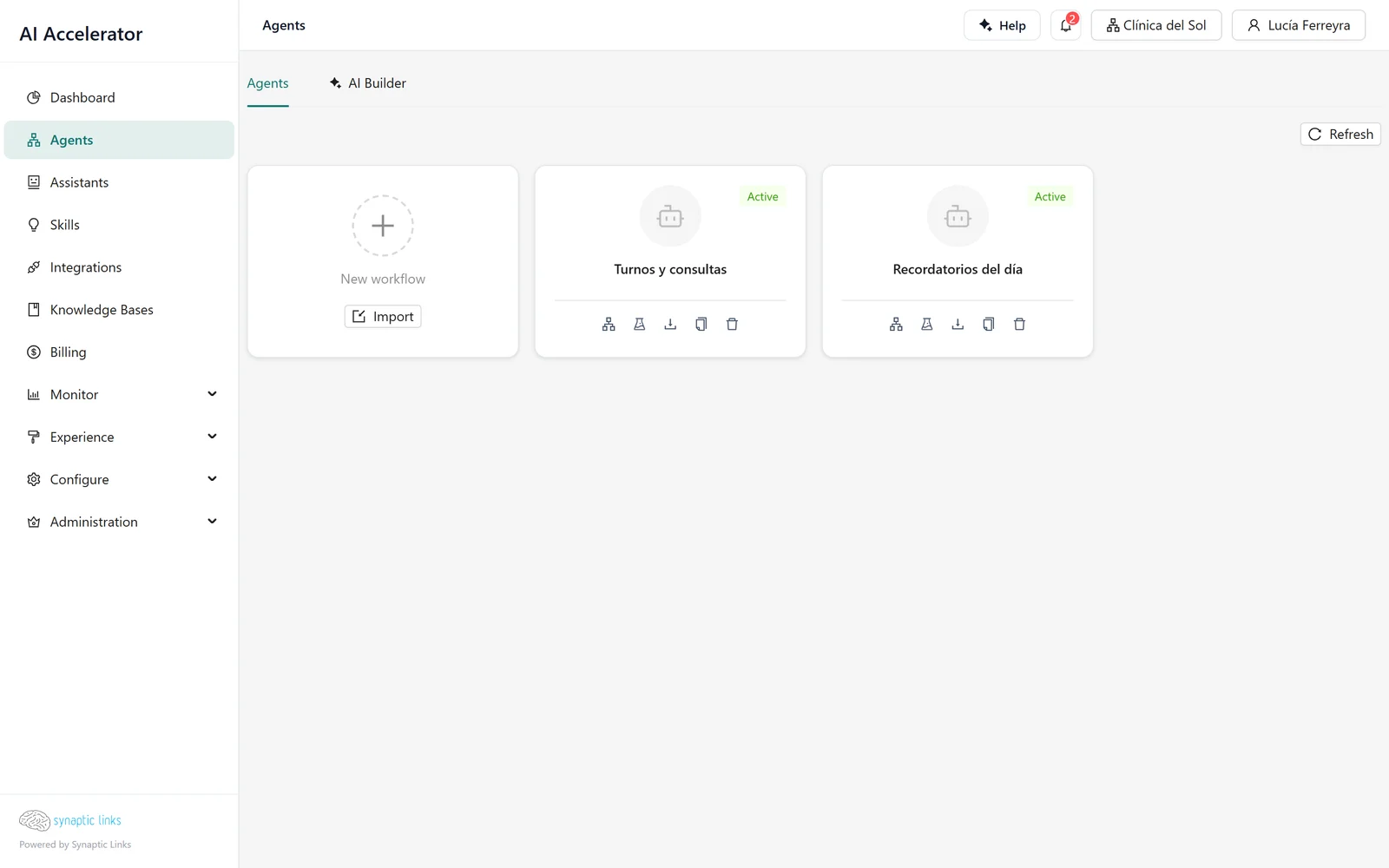
Four ways to start
From a template. The New workflow button opens the template gallery: customer service, lead qualification, internal help desk and others. You pick one, apply it, and the agent is created with a workflow that already works. It is the shortest path when the use case is a common one.
Blank. The first card in the gallery creates an empty agent and takes you straight to the editor.
With the AI Builder. The AI Builder tab is a chat: you describe what you need and the admin assistant builds the agent with the same tools you would use, showing you the result as it builds it. The agent it creates starts as a draft, so you can review it before it answers anyone.
By importing an artifact. Every agent can be exported as an .artifact.json file that contains its complete definition. Importing it into another tenant recreates the agent exactly as it was. This is how we move an agent from a test tenant to the customer's tenant, keep a copy before a large change, or version agents in Git.
In every case, creation counts against the tenant's agent limit; if the limit is reached, the platform rejects it with a quota error.
Assistant or workflow
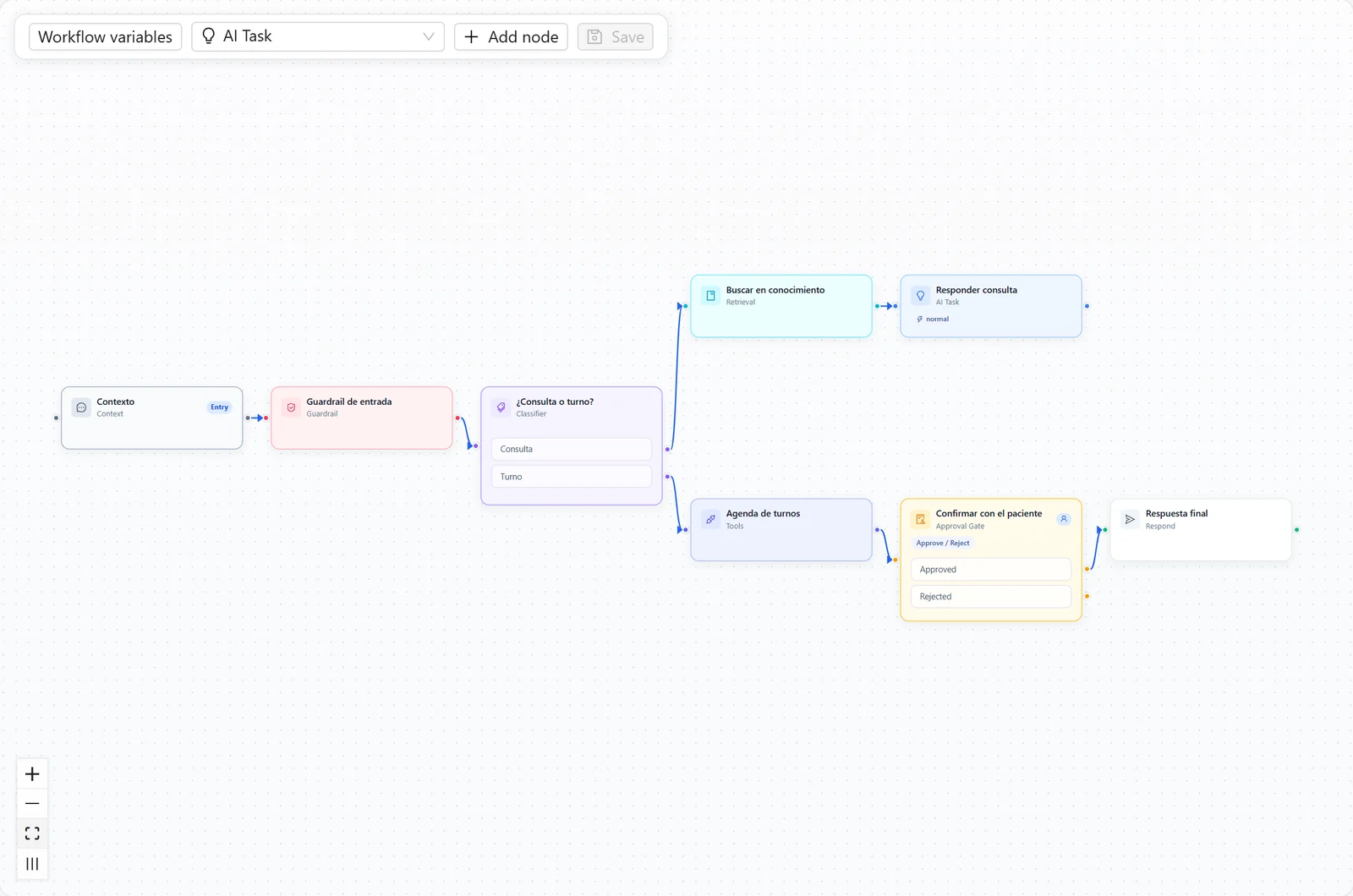
For the clinic, Nortelink started with an assistant: a form where you enter the instructions, the knowledge and the tools. On save, a compiler turns that form into a graph. With one knowledge base and no tools, the graph produced by the simple assistant is this:
conversation context → input guardrail → knowledge search → model response
The input guardrail checks for prompt injection and jailbreak attempts before the message reaches the model. If the assistant has tools, the compiler adds a tool-use loop. Compilation happens on save, not on every message: what runs is the saved graph.
When the use case grows (handing off to a human, asking for confirmation before booking an appointment, classifying the query before answering) the assistant can be ejected to a workflow. The platform keeps the compiled graph and discards the form, and from then on you edit it node by node. It is a one-way path: a workflow cannot go back to being an assistant.
The nodes
The editor offers nineteen node types. You do not need to know all of them to get started; these are the ones that appear in almost any agent:
| Node | What it does |
|---|---|
| Conversation context | Gathers the session history and summary for the following steps |
| Guardrail | Checks the input or the output against rules: injection, forbidden topics, personal data |
| Search | Retrieves chunks from the knowledge bases (chapter 4) |
| Model task | A call to the model with instructions and data from the state |
| Tool router | Lets the model decide which tools to use, in a loop, until it resolves the request (chapter 5) |
| If / then and Classifier | Branch the flow by a condition or by the category of the message |
| Respond and Content template | Build the final response, as text or as a structured card |
| Agent | Delegates a task to another agent in the same tenant |
| Approval gate | Pauses execution until a person decides |
| Group | Repeats a set of nodes until a condition is met |
Some nodes depend on tenant features: image generation, the approval gate and the direct tool, and the code node. If you do not see them in the palette, they are not enabled for that tenant.
How a message runs
When a message arrives, the platform validates the graph's topology and walks it from the entry node:
- Edges define the order. If a node has several outgoing edges, the following nodes run in parallel. This way, searching the knowledge and classifying the query can happen at the same time.
- Branches choose one path. If / then, Classifier and the approval gate send the flow through a single output depending on the result.
- A node with no outputs ends the execution.
- Every step is recorded: which model it used, how long it took, how many tokens it consumed, what went in and what came out. This is what you will see in the history (chapter 7).
There are limits that protect against an agent getting out of control:
- The tool router stops at 10 tool calls by default. The limit can be adjusted per node, and the loop depth grows proportionally.
- A group repeats at most 10 iterations unless you configure a different maximum.
- A subagent can be nested up to 5 levels, has 120 seconds by default to respond, must belong to the same tenant and must have an active version. Circular references are rejected. If a subagent fails, the error comes back as the step's result and the calling agent continues.
- At the level of the whole execution, you can set caps on model calls, cost and tool calls.
Testing in the playground
The Playground is a chat with the agent, with the timeline of each execution alongside it: which nodes ran, in what order, with which model and what each one returned. It is the fastest way to understand why the agent answered what it answered.
The playground runs the agent's active version. A draft just created by the AI Builder has to be activated before it can be tested there.
Versions: what happens on save
Chapter 1 explains the states of a version and the tenant's version activation. When building an agent, what matters is:
- In the workflow editor, saving a node saves the whole workflow: the node, the connections, the entry point, the positions and the variables. The node panel stays open and no second save is needed. If the save fails, your changes stay on screen so you can retry.
- With automatic activation, saving a form creates a new version and activates it at once, and saving in the workflow editor writes over the live version.
- With manual activation, every save goes to a single pending version; nothing changes for users until you activate it. Saving several times does not create several versions.
- If someone else changed the workflow while you were editing it, the save is rejected with a conflict notice. Copy your changes before reloading.
- Restoring a version means activating it from the history: every other version becomes inactive and that one answers again.
With automatic activation, export an agent before touching its workflow in production: that is your rollback point. With manual activation, the rollback point is the live version, which keeps answering until you activate the pending one.
Human approval
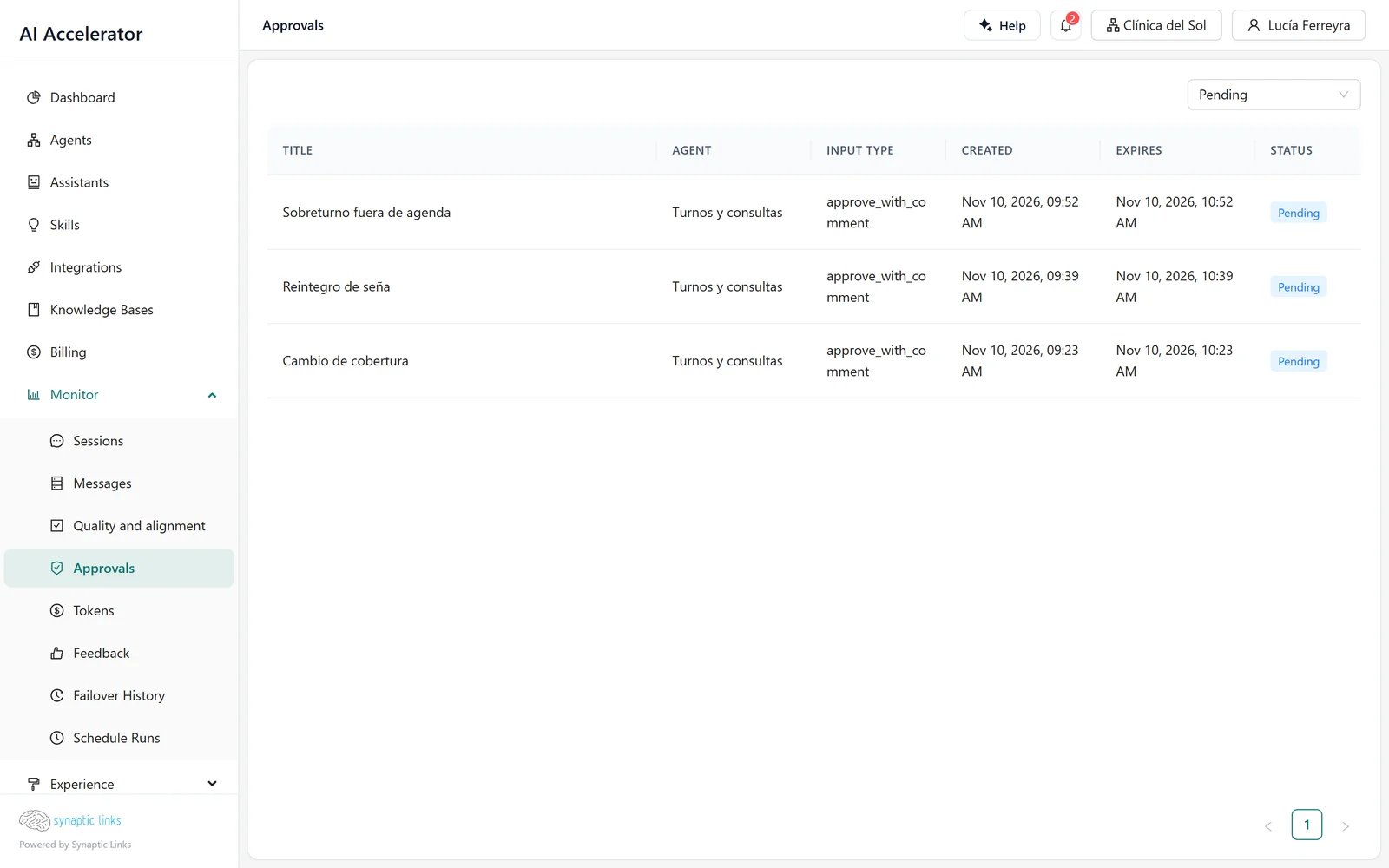
The approval gate pauses the workflow and saves its state until someone decides. It has two audiences:
- User. The question appears in the same conversation: "Do you confirm the Tuesday 10:00 appointment with Dra. Paz?", with buttons to approve or reject. It lets the user confirm an action before the agent carries it out.
- Supervisor. The request appears in Monitor → Approvals in the admin, where someone on the team approves or rejects it. It is for actions the end user should not decide: a refund, an exception to a policy.
The gate supports approve/reject, buttons, free text, approve with comment and multiple selection. If nobody decides, the request expires after 60 minutes by default, and an expired request can no longer be approved.
Scheduled runs
An agent can also run without anyone writing to it: with a schedule in cron format and a time zone, it receives a fixed input message at the specified time. The clinic uses this so that every morning the agent reviews the day's appointments and reports the changes.
By default, each schedule runs one execution at a time and cuts it off at 2 minutes; it can go up to 10 concurrent runs and 5 minutes. If the time comes and there are already as many runs in progress as the maximum, the new one waits in the queue: it is not lost.
Each run starts a new conversation —it does not remember the previous one— and receives the fixed message, the trigger data you defined and the time it was scheduled for. With Retry once if it fails, a failed run is tried once more. If it fails several times in a row (5 by default) the schedule pauses itself, so it does not keep consuming resources on an error that will not resolve on its own. Editing or disabling a schedule cancels the runs that were still queued.
The result of each run —failed ones too, with their error— shows in the agent's Schedule tab and in Monitor → Schedule Runs.
Where it stops
- With automatic activation there is no review before publishing, and the workflow editor leaves no previous version on save. A review step exists only when the tenant uses manual activation.
- The tool router limits the number of calls; it does not detect repeated calls. An agent that calls the same tool ten times with the same data reaches the cap before it stops.
- Subagents: 5 levels, 120 seconds, same tenant and active versions only.
- Schedules: up to 10 concurrent runs and 5 minutes per run; each one starts with no memory of the previous one.
- User approvals can only be answered in the conversation; the admin only decides supervisor approvals.
To check
- The tenant uses the right version activation: manual for clients in production, automatic only where an unreviewed change reaches nobody.
- Every agent in production has a recent export stored outside the platform.
- Tool routers have a call cap that matches what the agent actually needs, not the default value out of inertia.
- Actions with real effects (booking, charging, cancelling) go through an approval gate.
- Supervisor gates have someone watching Approvals within the hour.
- The subagents you use have an active version: if someone deactivates one, the agent that calls it starts receiving errors at that step.